
Overview
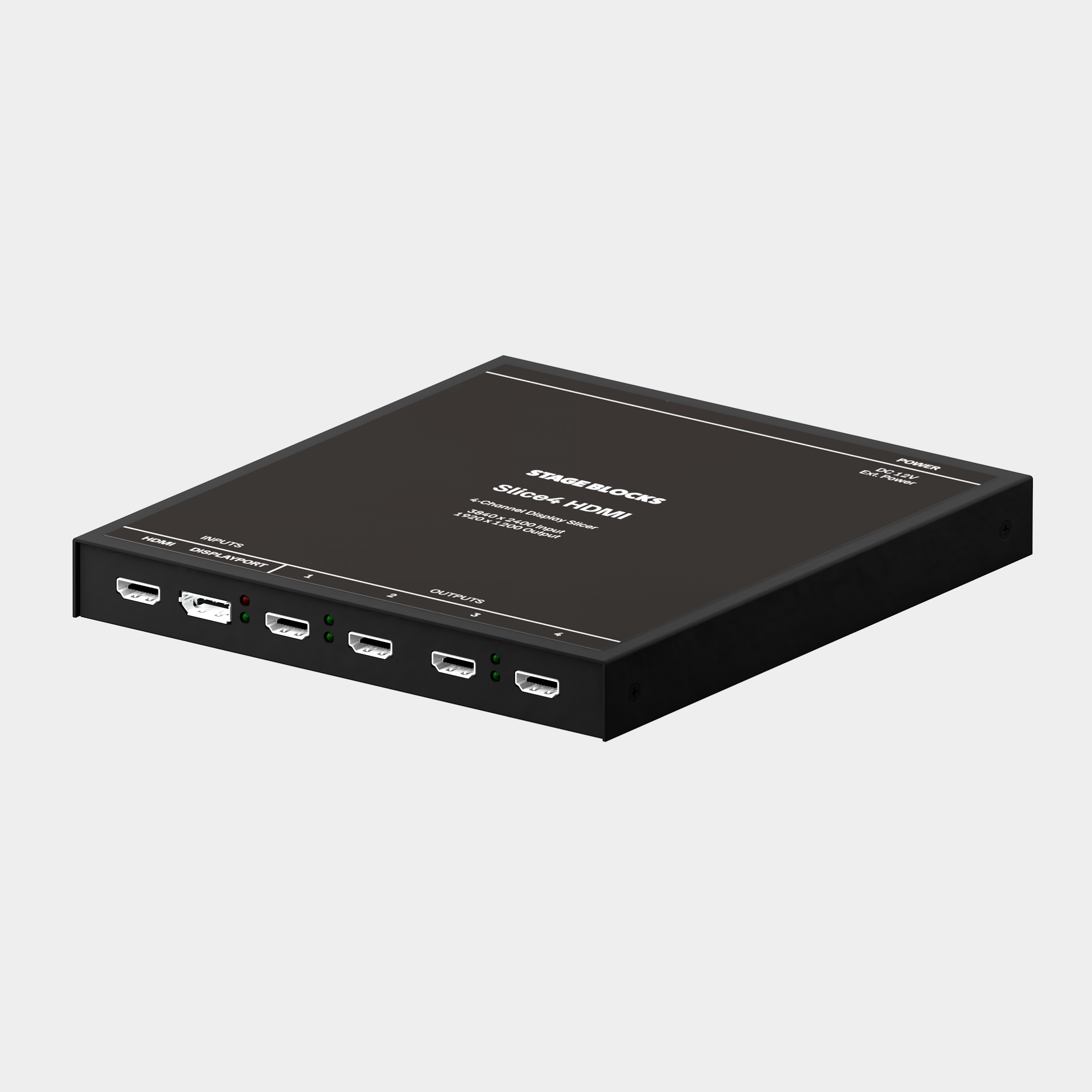
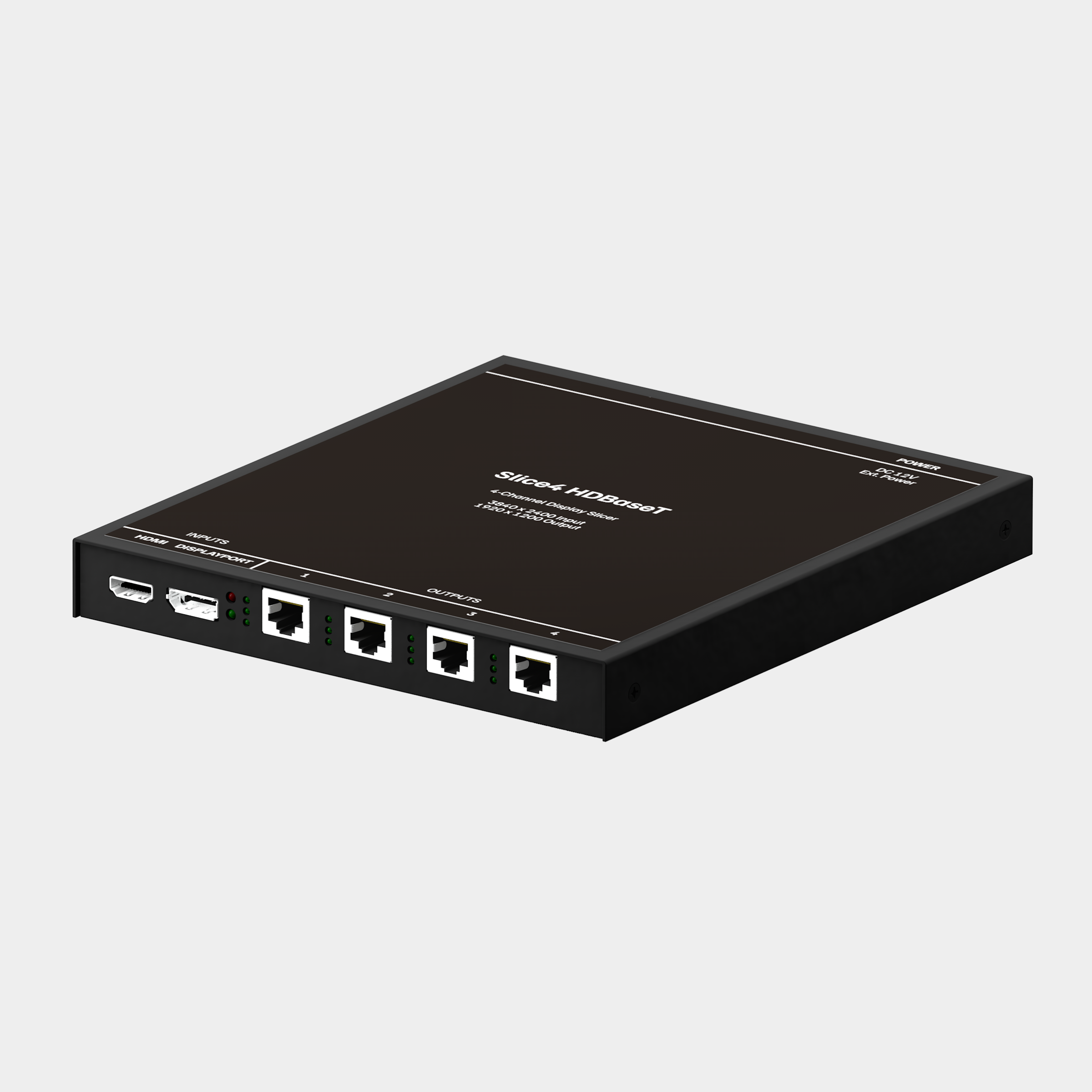
Slice4 HDMI and Slice4 HDBaseT connect up to 4 projectors to one video output.
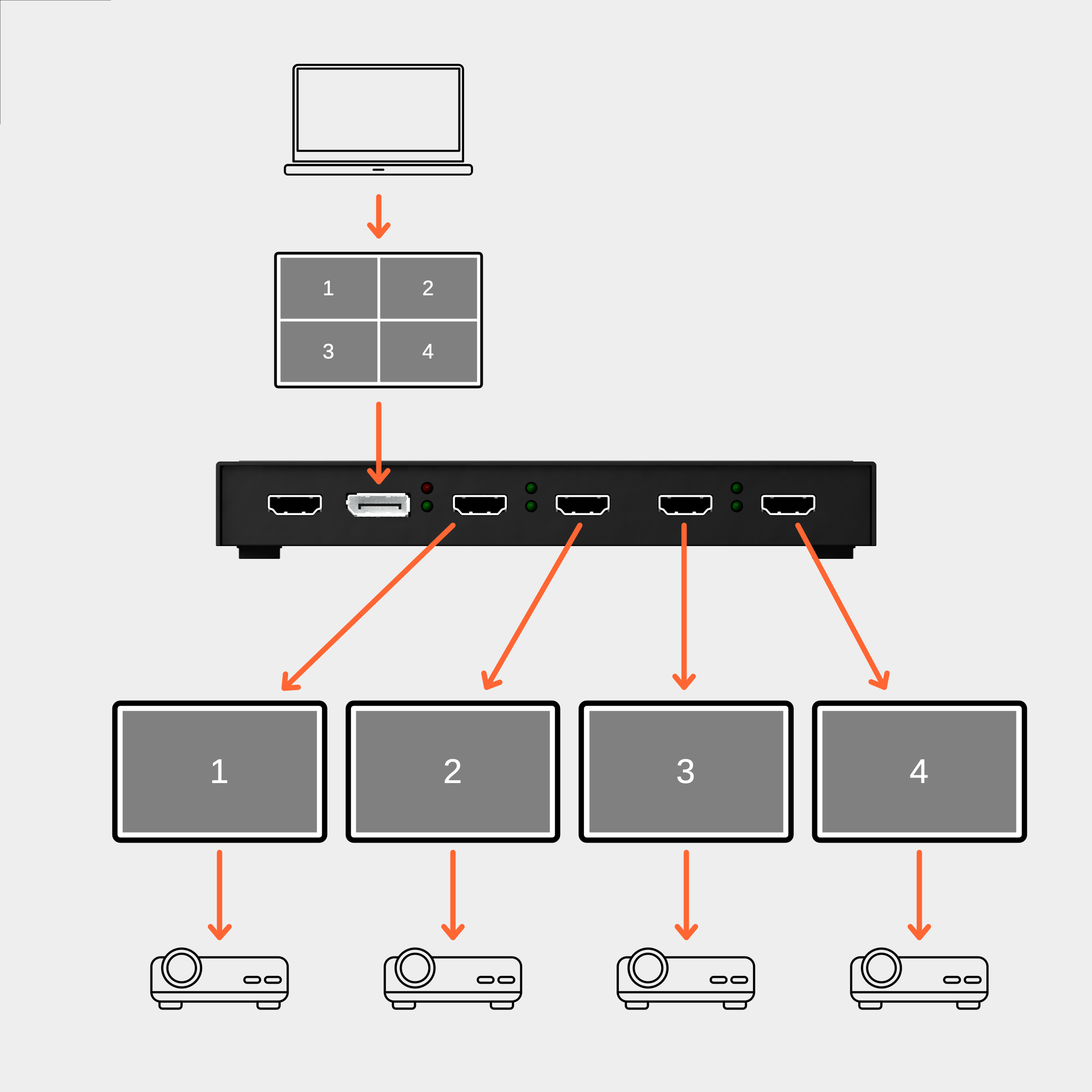
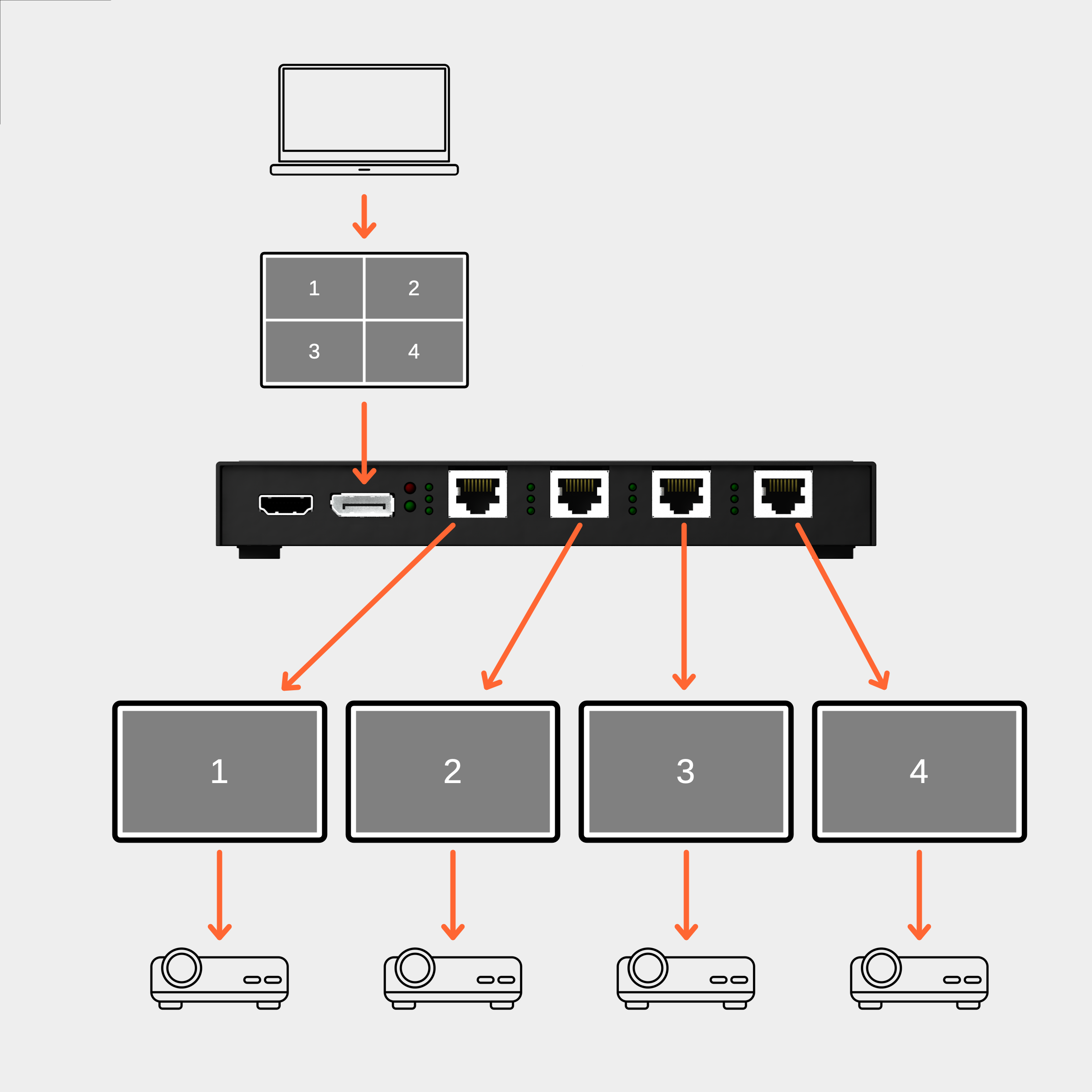
Slice4 appears to your computer as a single display. Internally, the Slice4 slices the input into 4 1920x1200 video outputs in a 2x2 configuration. The outputs are HDMI connectors on the Slice4 HDMI and HDBaseT connectors on the Slice4 HDBaseT.
Slice4 uses high-quality FPGA and video processing ICs to ensure there is no quality degradation between the input and output rasters.
Professional playback software like QLab, MadMapper, or Millumin is required in order to recognize the Slice4 as a display slicer. Image rotation, alignment, scaling, and mapping is handled in the playback software. Slice4 is designed specifically for Mac-based playback applications, but it also works on any computer.
All WUXGA 1920x1200 projectors and most 1080p (or greater) displays will work right out of the box. Most 1080p projectors, screens, and monitors will accept the WUXGA 1920x1200 output from Slice4. Consult your display’s manual to confirm 1920x1200 input is supported. No configuration application is required to configure the Slice4 hardware.
Usage
The Slice4 HDMI and Slice4 HDBaseT are display slicers. A display slicer connects to a playback device as one single raster display but has several video outputs, each a region of pixels within the input raster. They are often referred to as video wall controllers.
Display slicers are useful for overcoming display count limitations on computers. For example, the Apple M4 Mac mini supports up to two displays in addition to an operator monitor. Each Slice4 counts as one display, so two Slice4 units can be connected to the Mac. Since each Slice4 can be connected to 4 projectors, you can connect up to 8 projectors to one Mac mini. Of course, there are other practical considerations such as the Mac’s processor and memory, video encoding, and cue complexity to consider as well.
Reference the Connecting multiple Slice4 units to one Mac section for more information.
Input Connections
Slice4 features HDMI 2.0 and DisplayPort 1.2 inputs. Use the included USB-C to DisplayPort cable to connect Slice4 to your playback computer. Alternatively, use your own HDMI or DisplayPort cable.
Video Input Status
The green light below the power indicator light indicates Video Input status.
Solid Green Light = Video Input OK
Flashing Green Light = No Video Input
Output Connections
HDMI
HDMI is a common connector on projectors, TV screens, monitors, and LED video walls. Typical HDMI cables use simple copper wires to carry all signals and should only be used for lengths of up to 15 feet. Copper HDMI cables are not recommended for lengths over 15 feet. Fiber optic HDMI cables, which send key signals down a fiber optic bundled with low-speed copper wires, are affordable and available in lengths of over 300 feet.
An indicator light on the Slice4 will illuminate when the projector or screen is connected and powered on.
HDBaseT
HDBaseT can be found on many projectors. It uses the same RJ-45 connector as Ethernet networking, so you can use standard twisted pair “ethernet” cables to connect Slice4 to the HDBaseT port on your projector. The HDBaseT port on a projector is marked with the HDBaseT logo or text to differentiate it from a regular Ethernet port.
For distances over 150 feet or electromagnetically complex environments, shielded Cat6A cable is recommended. Slice4 can transmit up to 230 feet.
Each output port on the Slice4 includes indicator lights for connection status and video output.
Resolution
Unlike most display slicer products, Slice4 is optimized for the 1920x1200 (WUXGA) native resolution of most projectors. In other words, Slice4 takes advantage of the additional resolution that other display slicers may be unable to use, potentially enabling your projector to cover more of your stage.
Most displays with native resolution 1920x1080 (FHD) or larger are compatible with WUXGA input. Consult your devices’s manual to confirm 1920x1200 WUXGA input is accepted.
EDID Information
All Slice4 units are assigned a unique 3-digit ID to make them easy to identify when connecting multiple units to one Mac. The ID is stored in the Display Name (visible in System Settings and production apps) and in the HDMI serial number. The string “123” in the below examples represents the 3-digit ID.
Product ID / Vendor
Slice4 HDMI: 4001 / BLX
Slice4 HDBaseT: 4002 / BLX
Serial Number
00000123
(only the 32-bit serial field is used, alphanumeric serial is not implemented)
Display Name
Slice4 HDMI/HDBaseT (using HDMI input):
S4-HDMI-123
Slice4 HDMI/HDBaseT (using DP input):
S4-DP-123
Connecting multiple Slice4 units to one Mac
Connect as many Slice4 units to your Mac as the number of external displays it supports. Your playback software can recognize each Slice4 unit by its unique ID automatically over the HDMI or DisplayPort connection using EDID.
| Model | Slice4 Units | Slice4 Outputs |
|---|---|---|
| M1, M2 MacBook Pro |
1 | 4 |
| M2 Mac Mini |
1 | 4 |
| M1 Pro, M2 Pro, M3 Pro, M4 Pro MacBook Pro |
2 | 8 |
| M2 Pro Mac Mini |
2 | 8 |
| M4, M4 Pro Mac Mini |
2 | 8 |
| M1 Max MacBook Pro |
3 | 12 |
| M2 Max, M3 Max, M4 Max MacBook Pro |
4 | 16 |
| M1 Max, M1 Ultra, M2 Max, M4 Max Mac Studio |
4 | 16 |
| M2 Ultra, M4 Ultra Mac Studio |
7 | 28 |
In practice, the number of projectors you can use is also limited by the complexity of the show, the efficiency of your playback software, and your computer’s CPU and GPU.
Check Apple’s MacBook Pro, Mac mini, and Mac Studio identification guides for details on external display support.
Specifications
Dimensions
Width: 7.5”
Depth: 8”
Height: 1.25”
Weight: 2lbs 9oz (1.16kg)
Electrical
Supply Voltage: 12V DC
Current (Idle): 0.65A / 7.8W
Current (4 displays connected): 0.75A / 9W
Power Supply:
12V DC @ 2A / 24W
5.5mm OD x 2.1mm ID x 10mm
Mounting
M3 threaded mounting holes on bottom side under rubber feet